Thursday, February 23, 2012

Select Distinct for ArcGIS 10


Writing tools in VB.net is very easy to do with the ArcGIS 10 Snap-In framework.  This is made even better by the fact that you can code with Visual Studio 2008 Express Edition, which is free, instead of paying for Visual Studio Professional as with ArcGIS 931.

The Select Distinct Tool that I will demonstrate is used to select unique values in your attributes.  Very useful for identifying duplicated attributes (such as IDS), or getting unique values based on attribute sorting (for example, give me the records having the longest segment length for each unique street name).  You can do this with SQL queries as well, but this tool is usually easier to do when your data is in file geodatabase or shapefile format.  If the data is in SQL server I would generally not recommend this tool. 

Once you have installed VB express, and then the DotNet SDK for ArcGIS (and the service packs), creating a command button toolbar is very straightforward:
1
    Create a new project:


Choose Button as your Add-in type:


   Add the ArcGIS ArcObjects SDK references you will need for your logic:
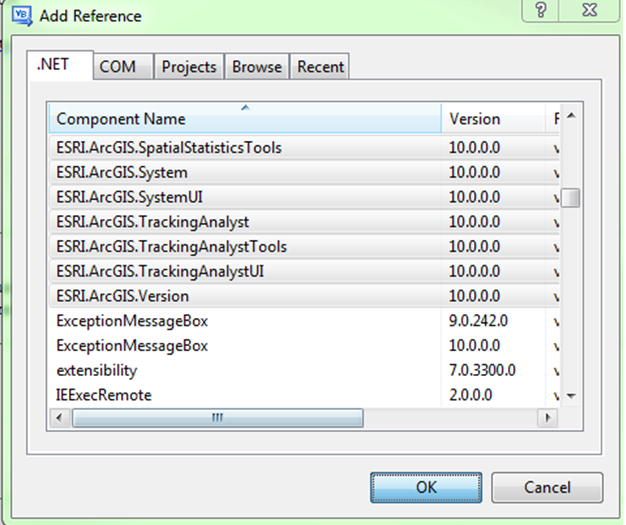

  Modify the Config.esriaddinx file to contain a toolbar containing your button.  

   Auto Complete makes the toolbar configuration very simple!  You will have to add the bolded Toolbars section below manually, but the Commands section is created automatically using the wizard. 

<ESRI.Configuration xmlns="http://schemas.esri.com/Desktop/AddIns" xmlns:xsi="http://www.w3.org/2001/XMLSchema-instance">
  <Name>MyNewAddIn</Name>
  <AddInID>{2e9f459d-a591-4016-95b2-27ddc30ad802}</AddInID>
  <Description>Type in a description for this Add-in.</Description>
  <Version>1.0</Version>
  <Image>Images\MyNewAddIn.png</Image>
  <Author>roy.jackson</Author>
  <Company>GISPROBLOG</Company>
  <Date>2/23/2012</Date>
  <Targets>
    <Target name="Desktop" version="10.0" />
  </Targets>
  <AddIn language="CLR" library="MyNewAddIn.dll" namespace="MyNewAddIn">
    <ArcMap>
      <Commands>
<Button id="GISPROBLOG_MyNewAddIn_SelectDistinct" class="SelectDistinct" message="Add-in command generated by Visual Studio project wizard." caption="Select Distinct" tip="Add-in command tooltip." category="Add-In Controls" image="Images\SelectDistinct.png" />
      </Commands>
      <Toolbars>
<Toolbar id="GISPROBLOG_SELECTDISTINCT" caption="GISPROBLOG_TOOLS" showInitially="true">
          <Items>
            <Button refID="GISPROBLOG_MyNewAddIn_SelectDistinct" />
          </Items>
        </Toolbar>
      </Toolbars>
    </ArcMap>
  </AddIn>
</ESRI.Configuration>


      Configure the button class to launch the main form code.  

    Note the new My.ArcMap object!

Imports ESRI.ArcGIS.ArcMapUI
Imports ESRI.ArcGIS.SystemUI
Imports ESRI.ArcGIS.ADF
Imports ESRI.ArcGIS.esriSystem
Imports ESRI.ArcGIS.Carto
Imports ESRI.ArcGIS.Geometry
Imports ESRI.ArcGIS.Geodatabase
Imports ESRI.ArcGIS.Framework
Imports ESRI.ArcGIS

Public Class SelectDistinct
    Inherits ESRI.ArcGIS.Desktop.AddIns.Button
    Dim m_pMxDoc As IMxDocument
    Dim m_pApp As IMxApplication
    Public myForm As New frmSelectDistinct

    Public Sub New()
        m_pApp = My.ArcMap.Application
        m_pMxDoc = My.ArcMap.Application.Document
    End Sub

    Protected Overrides Sub OnClick()
        myForm = New frmSelectDistinct
        myForm.m_app = My.ArcMap.Application
        myForm.Show()
        myForm.TopMost = True
    End Sub

    Protected Overrides Sub OnUpdate()

    End Sub
End Class


       Implement the frmSelectDistinct.vb code (see the download link at the end of the article)

     Run the Project!  

     Your toolbar will be available from the customize menu:


Another great element of the snap-in framework is that it is very easy to distribute the actual file that makes the code available to the end user.   Simply provide the user the with the .addin file, and once they double-click it the code is installed!  No more windows installer requirements.  To remove the addin, you can look in ArcCatalog’s addin folder in the home geodatabase and delete from there by right clicking and choosing delete:


I have seen some issues using ESRI SDK objects in your code when the end user doesn’t have the development environment installed, but these can be handled with various configuration settings. 

Also, custom icons were a pain to figure out, but just change the "Build Action" property of the icon to "AddInContent", and "Copy to Output Directory" to "Copy Option:.  

The source code, and .addin file for this project (look in the bin/debug folder), can be downloaded here:

The installer can be downloaded here:

http://dl.dropbox.com/u/63807183/SelectDistinct/SelectDistinctAddIn.esriAddIn

I hope this was helpful!


Monday, January 30, 2012

SQL Server Database Notifications

Oftentimes I am stuck wondering if a database query has completed, or a certain amount of progress on a multi-step query has been made.  I can always backtrack after the query has completed by adding print statements to my lengthy batch files to see how each section performs:

print 'Step 1 complete... ' + convert(varchar(255),getdate())

… however, the downside is that the messages don’t appear until the query has fully completed, which doesn’t help that much. 

I have found two workable options for getting notification of a SQL Server Process Status, both during a process and upon completion. 

Growl for Windows

The first option is using Growl for Windows+ xp_cmdshell

From the Growl site:

Put simply, Growl lets you know when things happen. Files finished downloading, friends came online, new email has arrived - Growl can let you know when any event occurs with a subtle notification.

The version for Mac appears to be much more complete in terms of hooks to COTS software, but with some simple configuration work I can get what I want. 

After installing the main software package, download the command line program as well:

Now, all we have to do is create a command line string and execute it (just as easily with command prompt, shell in VB etc.).  The query below contains the full syntax for wrapping a Growl notify command for use in xp_cmdshell, which is a great way to run command line statements from SQL Server Management Studio.  

Once xp_cmdshell is enabled, simply copy and paste the code below into a query window:

declare @myalert varchar(max)
set @myalert = 'D:\workspace\code_checkouts\growl\growlnotify /t:Hey_There /s:true /host:localhost /p:2 "Query Complete\n ' + convert(varchar(255),getdate())
declare @mysql varchar(max)
set @mysql = 'EXEC xp_cmdshell ''' +@myalert + ''''
exec (@mysql)

And you will get a notification window popup:
This is useful when I am at my workstation, but I also want to receive an email if I am away to save me the energy of logging in every couple hours to check progress. 

Configuring Growl to use email is fairly easy once you know the settings.  For Gmail account settings:


Then enable the email notification for growlnotify:


Now, in addition to a popup, I get an email in my inbox:


SQL Server Database Mail

Another, probably better, option is using the built in SQL Server 2008 functionality called Database Mail. 
This excellent walkthrough explains the whole concept:


I used this query to enable the functionality in SSMS:

GO
RECONFIGURE with OVERRIDE
GO
sp_CONFIGURE 'Database Mail XPs', 1
GO
RECONFIGURE with OVERRIDE
GO

These are the Gmail settings for Database Mail:


Once the settings are configured, you need to know how to construct the command - this is detailed syntax page from MSDN:
Finally, I used this to send the email:
EXEC msdb.dbo.sp_send_dbmail
    @profile_name = 'RoyJackson',
    @recipients = 'roy.jackson@gdr.com',
    @body = 'The stored procedure finished successfully.',
    @subject = 'Automated Success Message' ;
   
And this to see if it worked – if the message failed you will see an error row and some details as to the status:
select * from msdb.dbo.sysmail_allitems


Next stop is using Growl within some other programs such as ArcGIS / python…
Hope this is useful!

Monday, January 23, 2012

A Humble Reset

Greetings out there to no-one in particular!

One of my goals for 2012 is to re-engage the online community in some of the areas that I am interested in.  This blog will be a place where I can talk about the never-ending challenges that I encounter on my projects, and what interests me as from a technical and business perspective.  Hopefully I can interest people in learning a new skill or tool, can save some time in solving problems, or can meet and interact with others in the geospatial technology industry. 

I am always interested in solving problems by bringing people together, understanding business and user requirements, and applying my unique perspective and managerial / technical skills; it keeps me engaged and focused. 

The main technology tools I use today are Visual Studio 2008, SQL Server 2008, Javascript, ArcGIS for Server and Desktop, and a wide variety of third party data and mapping APIs.  I strive to be an expert in data quality and sources, production and automated systems, tool and web development, making customers happy and listening.  I want to continue to learn about business development, sales systems, and to be a better designer from a visual perspective. 

Thank you for visiting, sharing your thoughts, and beginning a conversation! 

~Roy